Single choice
Single choice input allows you to directly split your flow depending on what the user selects by linking any choice to a specific path in your flow. Link the “Default” item to determine the default path independent of what the user chooses.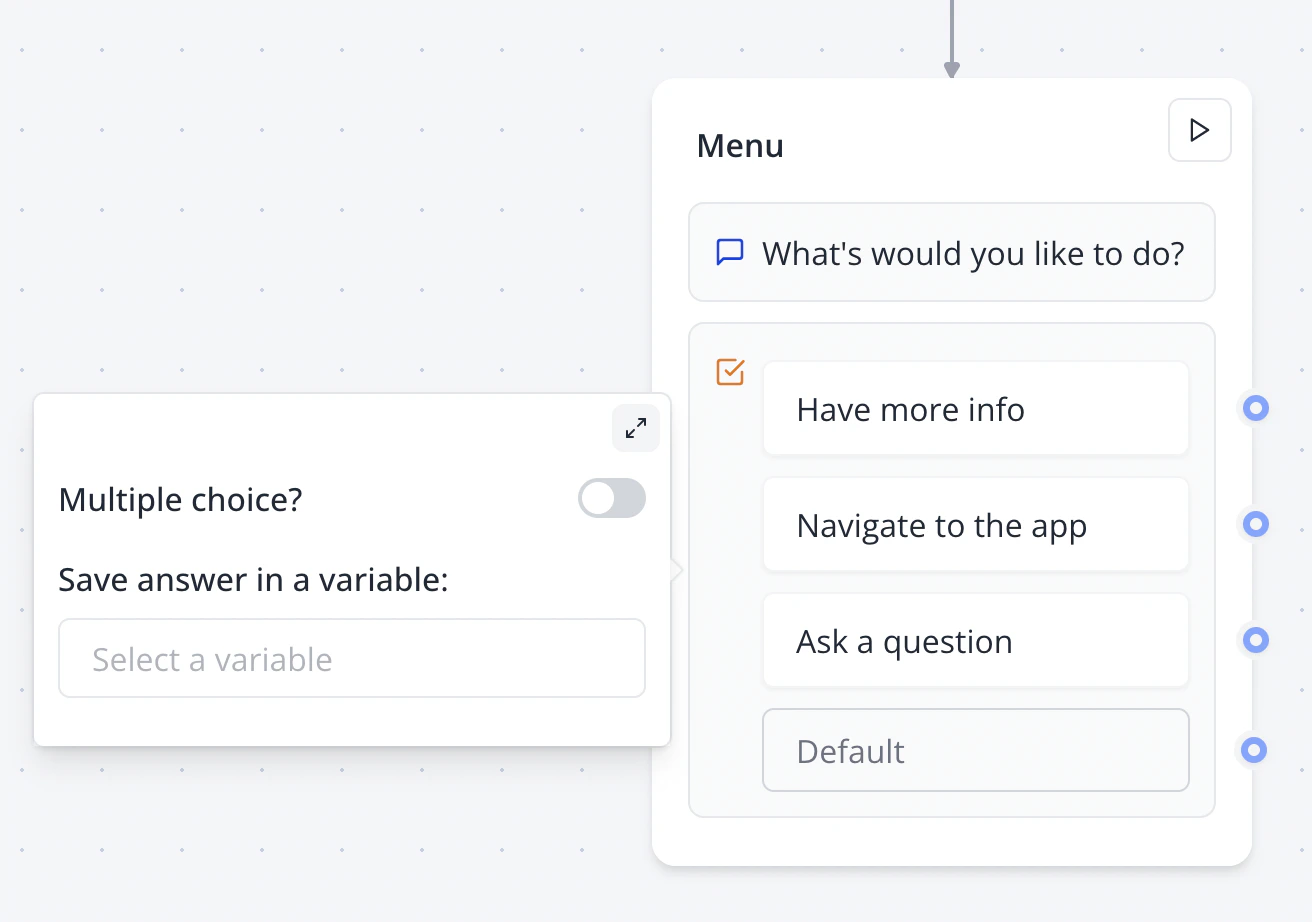
Multiple choices
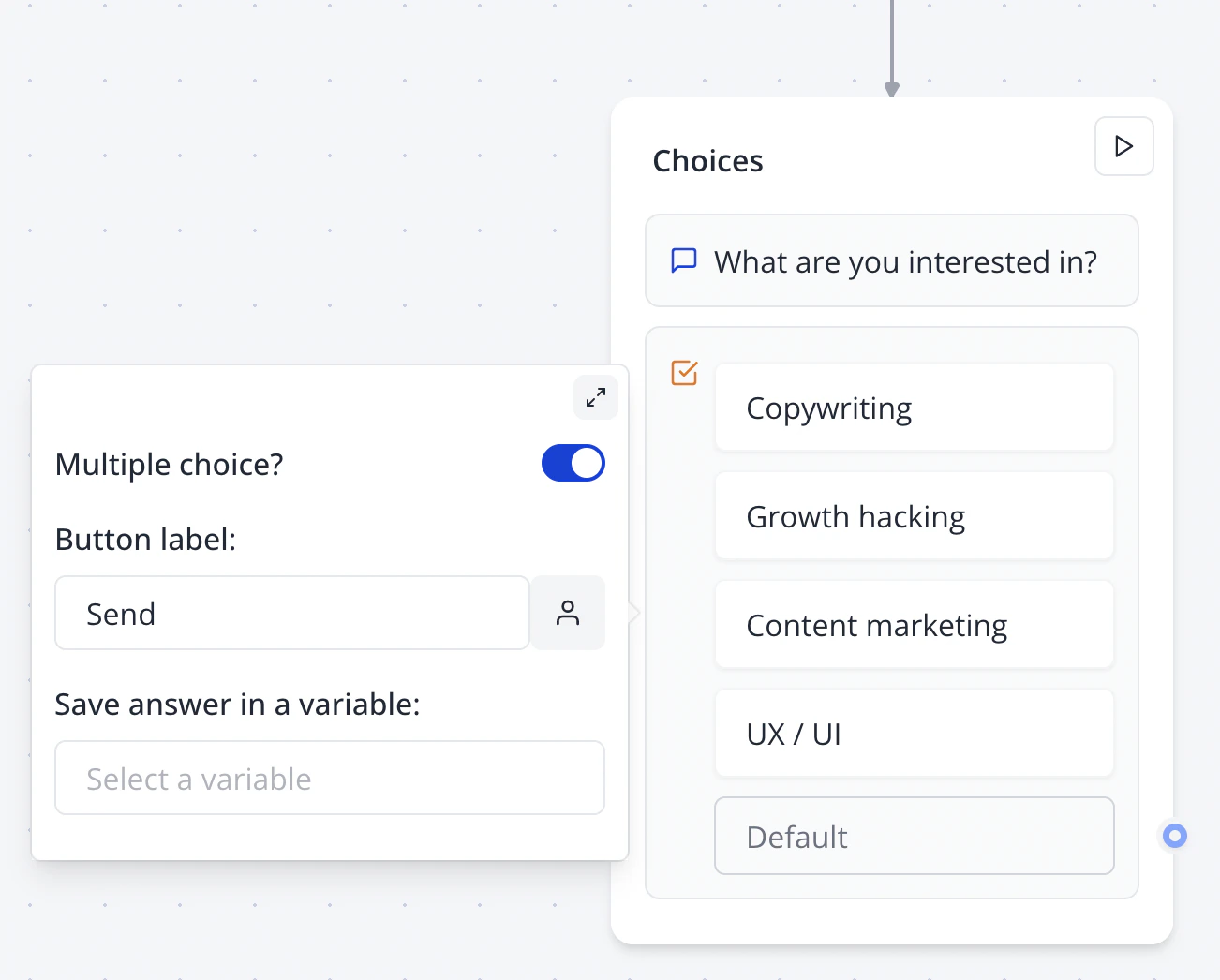
Dynamic items
Instead of adding items manually, you can also display a dynamic list of items based on a variable.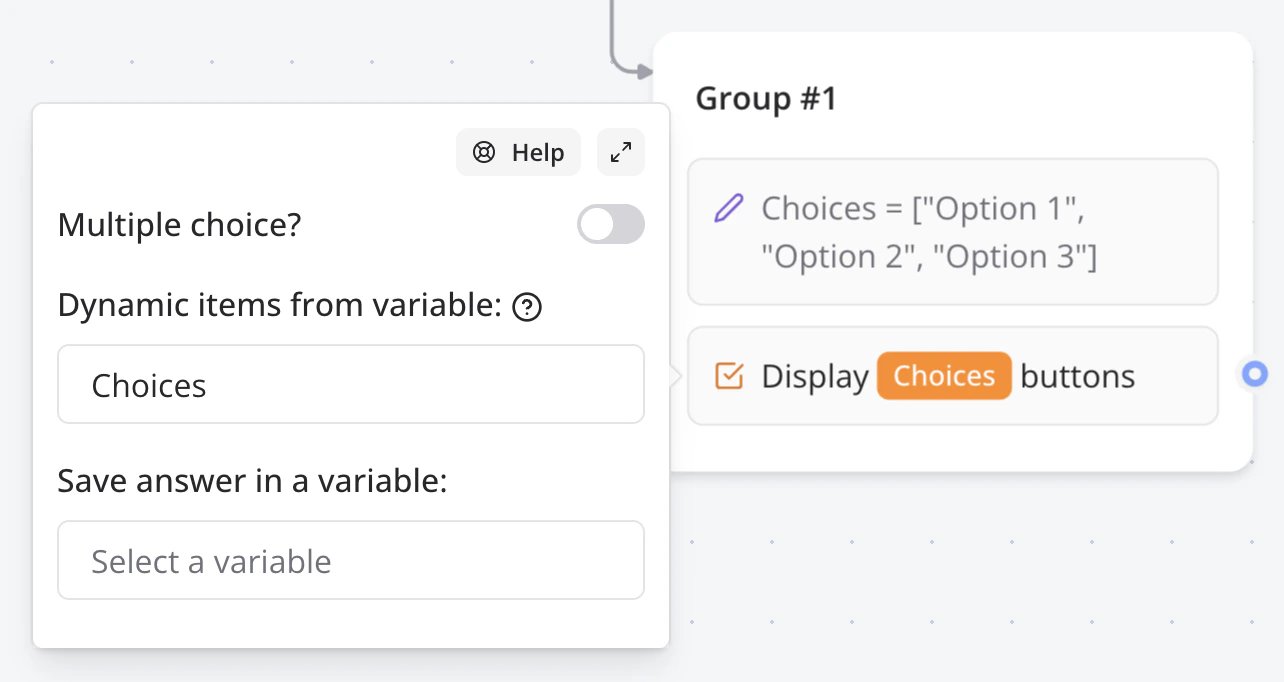
How to
Add a “Other” button
Sometimes you want to allow your user to enter a value that is not in the predefined choices. You can do this by adding a “Other” button and connect it to a “Text” input block.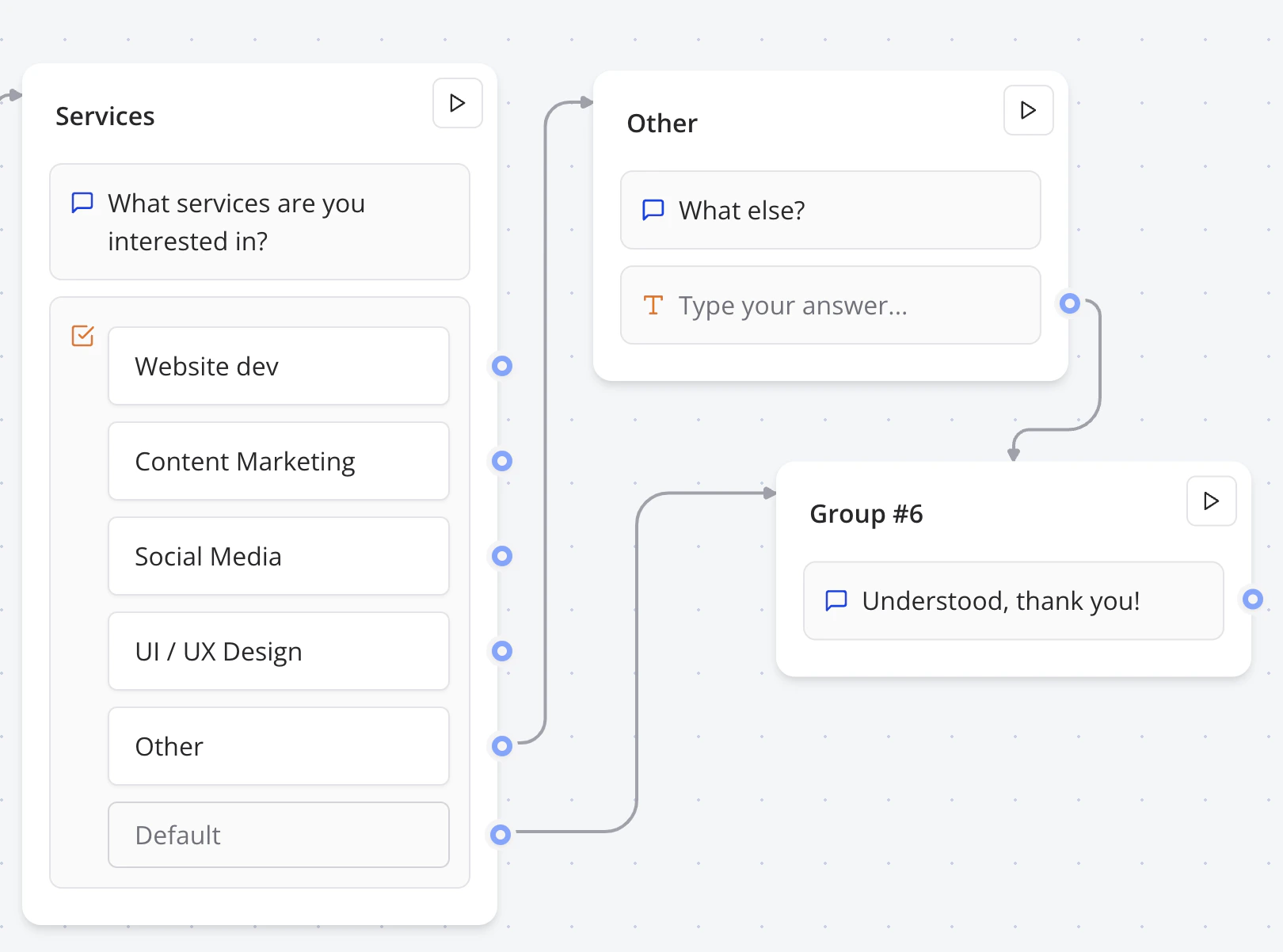
Different replies based on multiple choices
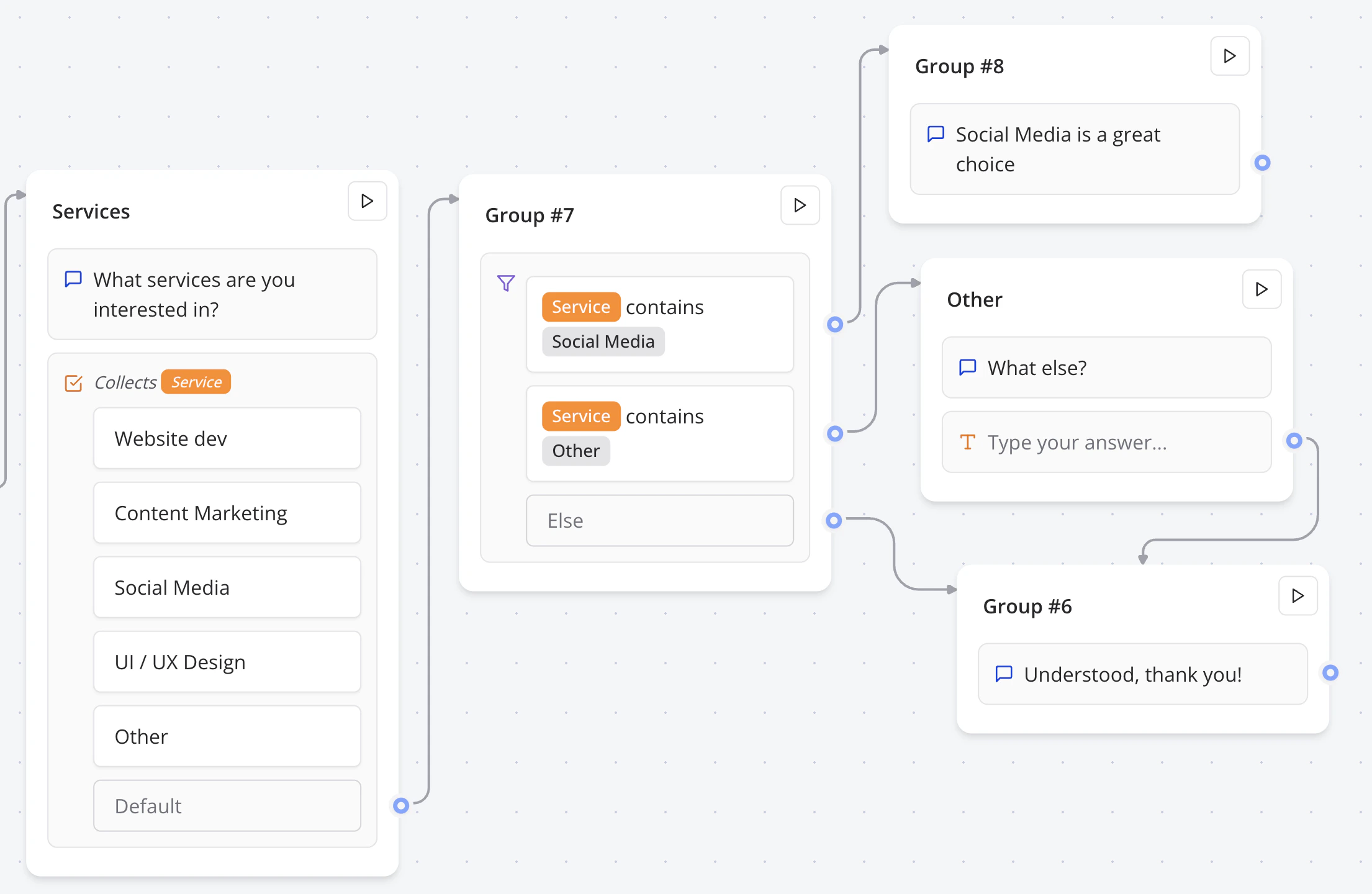
If you’d like to have different replies based on the multiple choices the user selects. You will need to- Save the answer into a variable.
- Add a “Condition” block
- Add comparisons based on the value of this variable
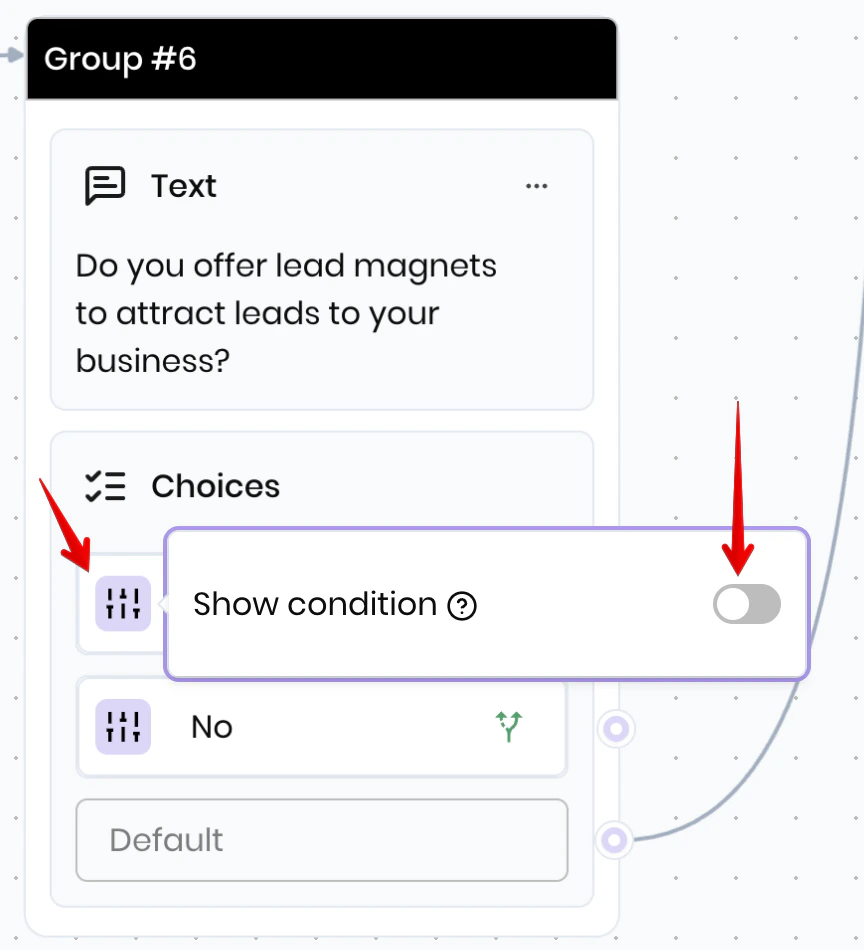
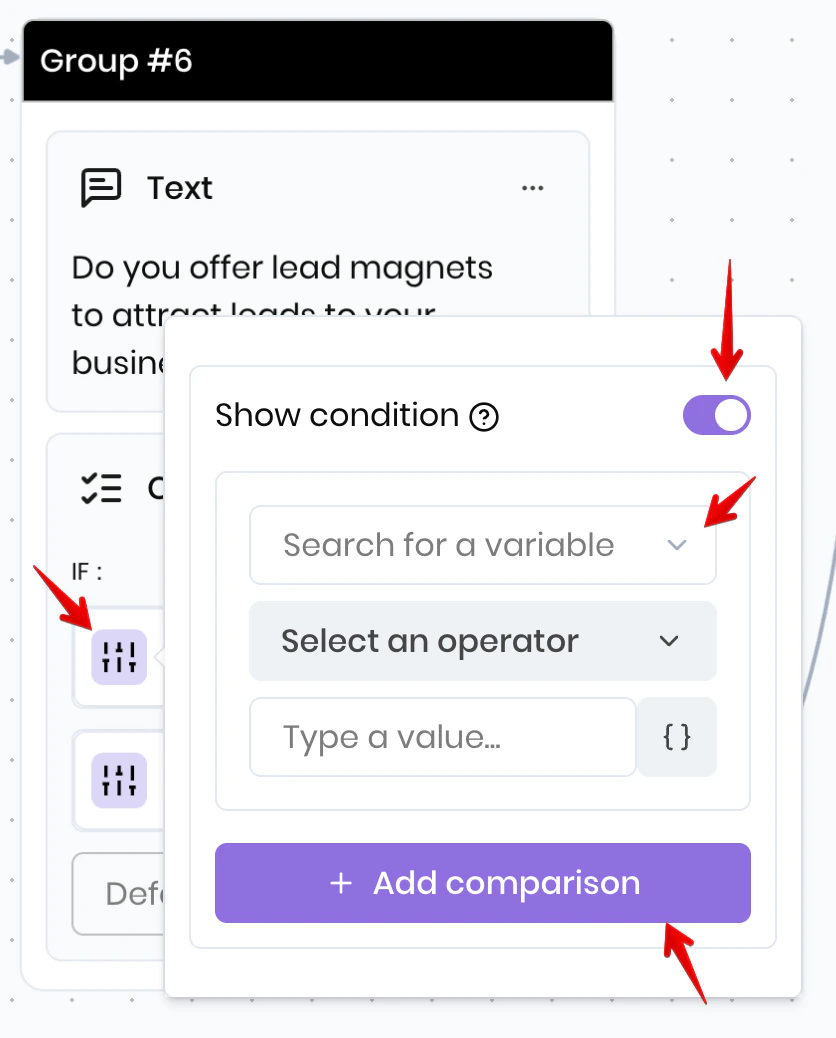
Conditionally display a certain button
Sometimes you may want to show or hide choices based on some condition. To do this you can use the conditional visibility feature on each choice option. Simply click the square button to the left of each choice to enable conditional visibility on that option.